
This walkthrough takes you from the unpacked device to a successful first login. You will need a laptop with a LAN port, or a display and a keyboard connected to the openXEdge, and about 10 minutes.
Prerequisites
- openXEdge is mounted and powered
- The device’s label or delivery note with its serial number (e.g.
SN00100) and initial password is at hand - A laptop with a LAN port and a browser, and a LAN cable — or a display (HDMI) and a USB keyboard connected straight to the edge
Step 1: Get access to the edge
Before you sign in, the edge shows its IP addresses nowhere — neither on its display nor in the browser. For the first sign-in, use a port with a fixed factory address or sign in at the device itself. Which socket is which port is shown in Edge wiring.
Recommended: through the service port
Port 3 (Eth3) has the fixed factory address 172.16.10.250/24 and is there for
exactly this purpose.
- Connect your laptop straight to Port 3 with a LAN cable.
- Give the laptop a fixed address in the same network, e.g.
172.16.10.10/24, without a gateway. - The edge is now reachable at
172.16.10.250. Continue with step 2.
Port 1 (Eth1, 172.16.9.112/24) belongs to the IO-Link master; do not connect the
laptop there.
At the device: display and keyboard
Connect a display to an HDMI port and a keyboard to a USB port of the edge. After start-up the display shows the sign-in page; sign in there as described in step 2.
Keyboard layout: As delivered, the keyboard types in the layout of the language set on the edge — German from the factory. Choosing another language with the globe on the sign-in page changes only the display, not the keyboard layout. The layout can be changed only after signing in (see Choose the interface language). On a keyboard that is not labelled German,
y,zand the hyphen of the initial password therefore sit on other keys.
Through the office network
Port 2 (Eth2) gets its address from your office network via DHCP. Which address it got is known to your DHCP server or your IT department; the edge itself shows it only after you have signed in.
Once signed in, you find the current addresses of all ports under Settings → Network — including the one Port 2 got via DHCP.
Step 2: Sign in with the password from the label
Open http://<edge-ip>:5000/ in your browser — through the service port,
http://172.16.10.250:5000/. At the edge’s own display there is nothing to
open. A device with a serial number
needs no activation: on its first start it takes over its serial number,
customer assignment and initial password by itself, even without an internet
connection. The browser therefore shows the sign-in page straight away:
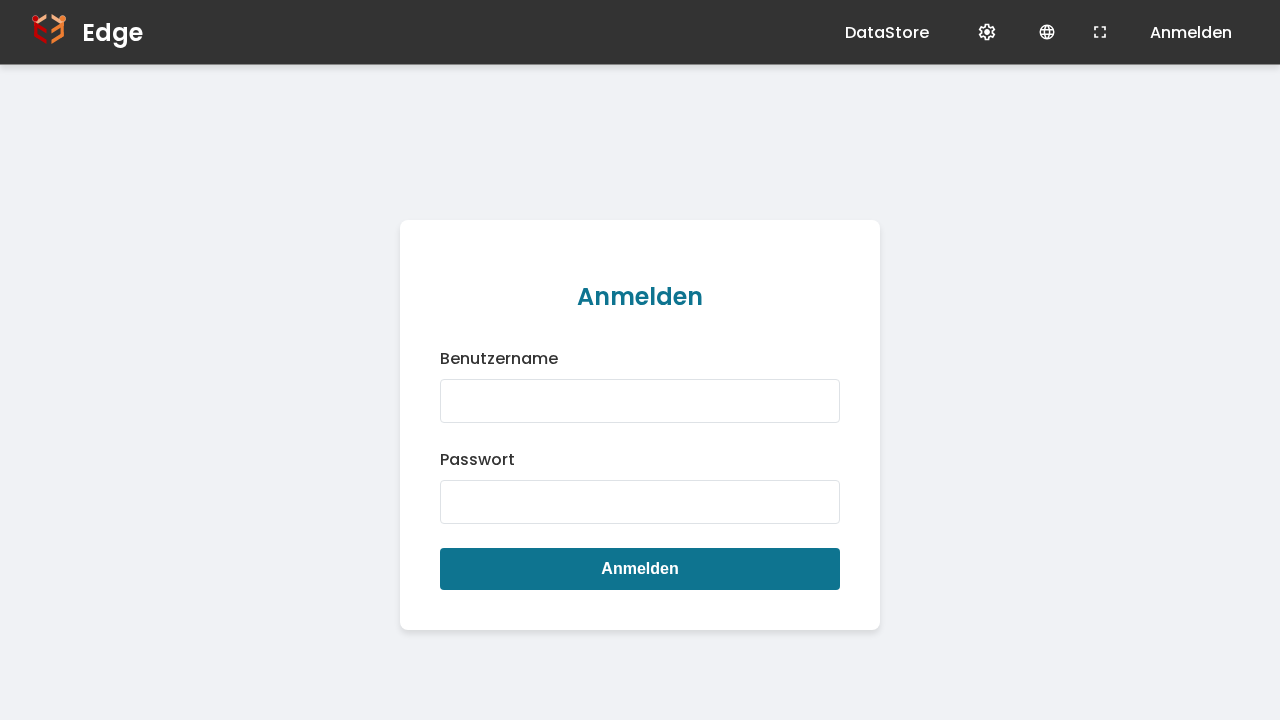
Sign in with the username admin and the initial password from the label or
delivery note. Type it exactly as printed there, hyphens included: three groups
of four lowercase letters and digits.
It contains only the digits 2 to 7: what looks like a 1 is a lowercase l,
what looks like a 0 a lowercase o.
⚠ Important: the initial password cannot be worked out from the serial number — it is printed only on the label and the delivery note. Keep both as you would a key. After the first sign-in with the initial password, the device takes you straight to changing it; only with a password of your own do you get any further. The password from the label is not accepted again (see also Change password).
If the browser shows an activation screen instead of the sign-in page, your device was shipped without a serial number. Activate it once yourself as described under Devices without a serial number: activation, then come back to step 3.
Step 3: The main view
After signing in you land on the Main Functions home page:
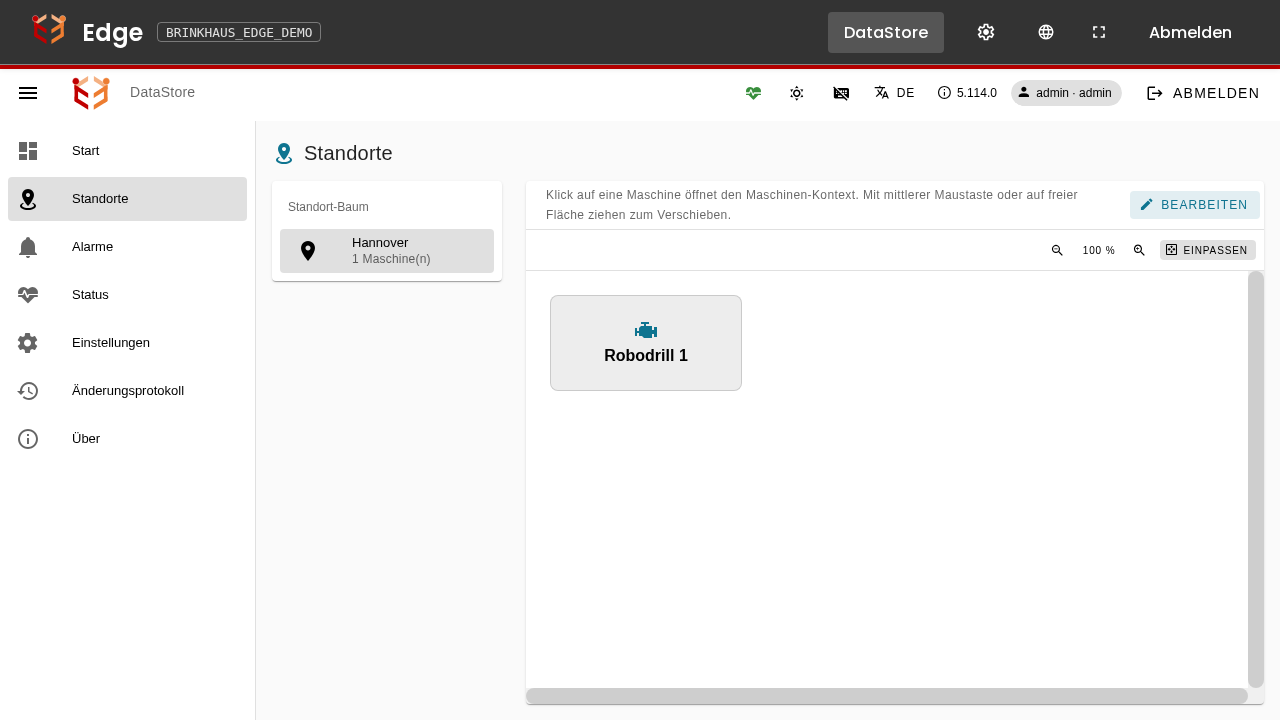
The five tiles map to the five embedded applications:
- Grafana — dashboards and charts of collected measurements
- IDEA4SBridge — overview and configuration of attached IDEA-4S sensors
- IOLink Master Configuration — IFM IO-Link master configuration
- DataStore — internal database
- AppStore — installable extensions via FLECS
The cog icon top-right opens the settings panel.
Devices without a serial number: activation
Devices that were shipped without a serial number and have never been activated
ask once for a machine ID the first time you open http://<edge-ip>:5000/.
Devices that are already activated are not affected: they keep their machine ID
and their password, also across firmware updates.
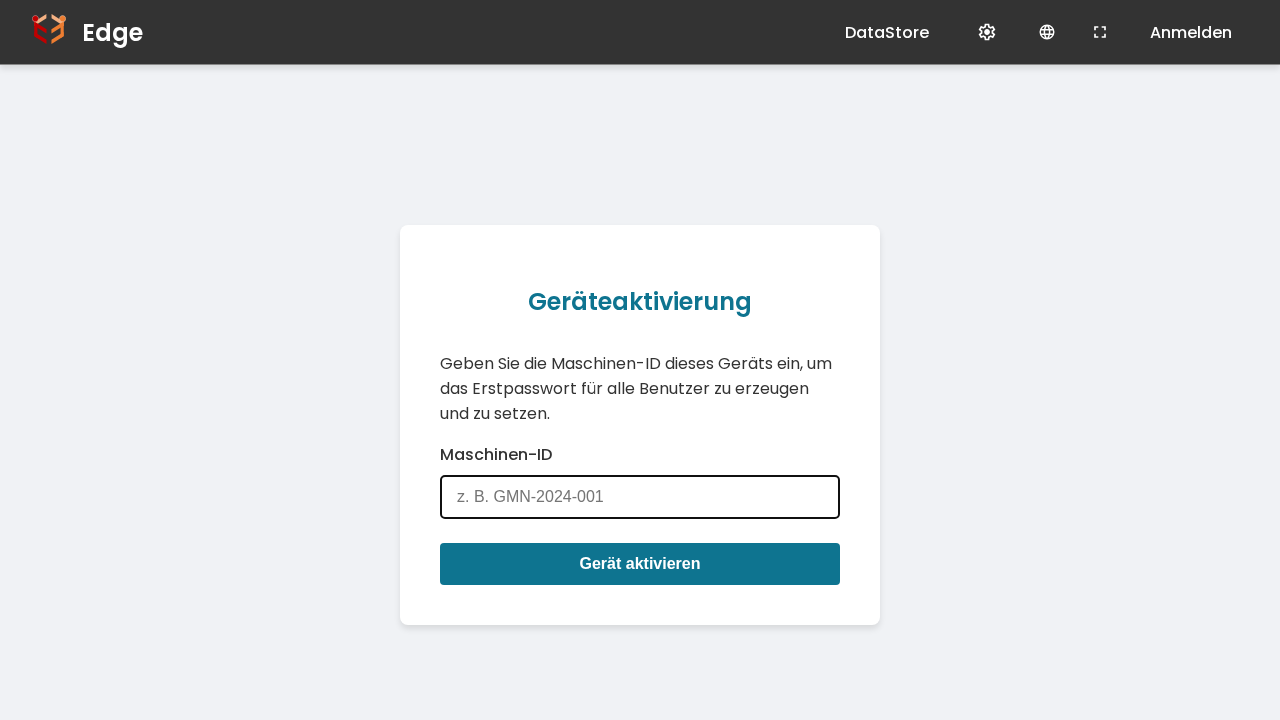
Enter the Machine ID (e.g. PLANT1_M01_GMN, unique across your fleet) and
click Activate Device. This ID identifies the device in fleet management and
is also used to derive the initial password.
The initial password is then shown only once:
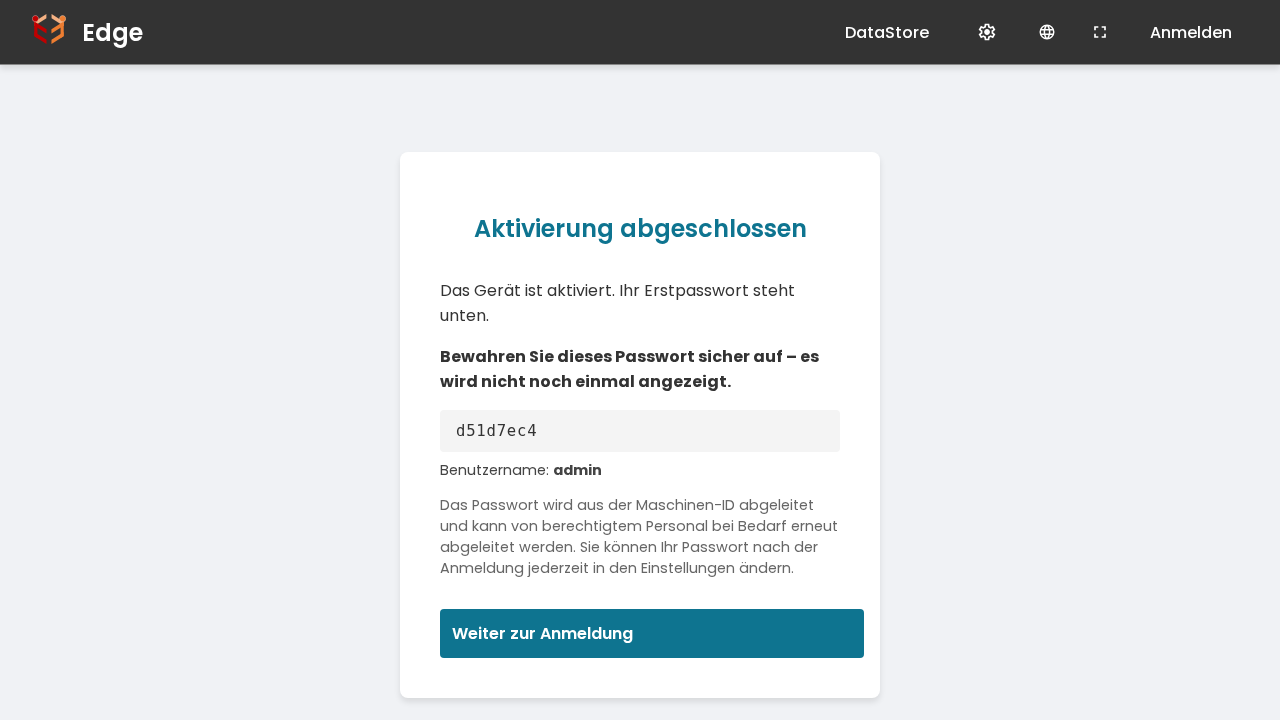
⚠ Important: copy the password now. It is not shown again. The default username is
admin. Authorised personnel can re-derive the password from the machine ID at any time — so change it right after the first login (see Change password).
Click Proceed to Login, sign in with admin and the password just shown, and
continue with step 3.
Which page the edge opens first
Out of the box the first thing you see is the overview with the tiles — unless your device was set to a particular application at the factory. On GMN devices that is Grafana: both the screen at the device and the browser open the dashboards first, because in day-to-day operation that is the most common reason to look at the device at all.
You can change this yourself at any time: Settings → Pages → Start Page. You can choose the overview or any application this device has. The setting covers both ways in at once — the screen at the device and the browser. Left on Automatic, the device behaves as it did before this setting existed: the screen opens the first main application, the browser the overview.
You can always get back to the overview by clicking the logo at the top left, or the device name beside it. And anyone who is not permitted to open an application still lands on the overview rather than on a refusal.
Next steps
- Change password
- Configure the network
- Update firmware
- For background: How updates work