
You want to inspect or maintain the IDEA-4S sensor on Port 1 of the IO-Link master — without IFM-specific tooling, directly from the openXEdge UI.
Prerequisites
- You are signed in as a user with the
idea4s-bridgepermission. - The IDEA-4S is physically wired (see Edge wiring) and appears in the device list.
Steps
-
Top-right cog → Settings → IDEA-4S Devices in the sidebar.
-
There is one entry per attached device (e.g. IDEA-4S 0). Pick the matching one.
-
The value list loads all parameters from the sensor (“Loading values: x/y”, with the section being read named in front of it on larger devices). Depending on the device this takes half a minute to a minute — longer while something else is talking to the sensor. Below that a five-tab carousel:
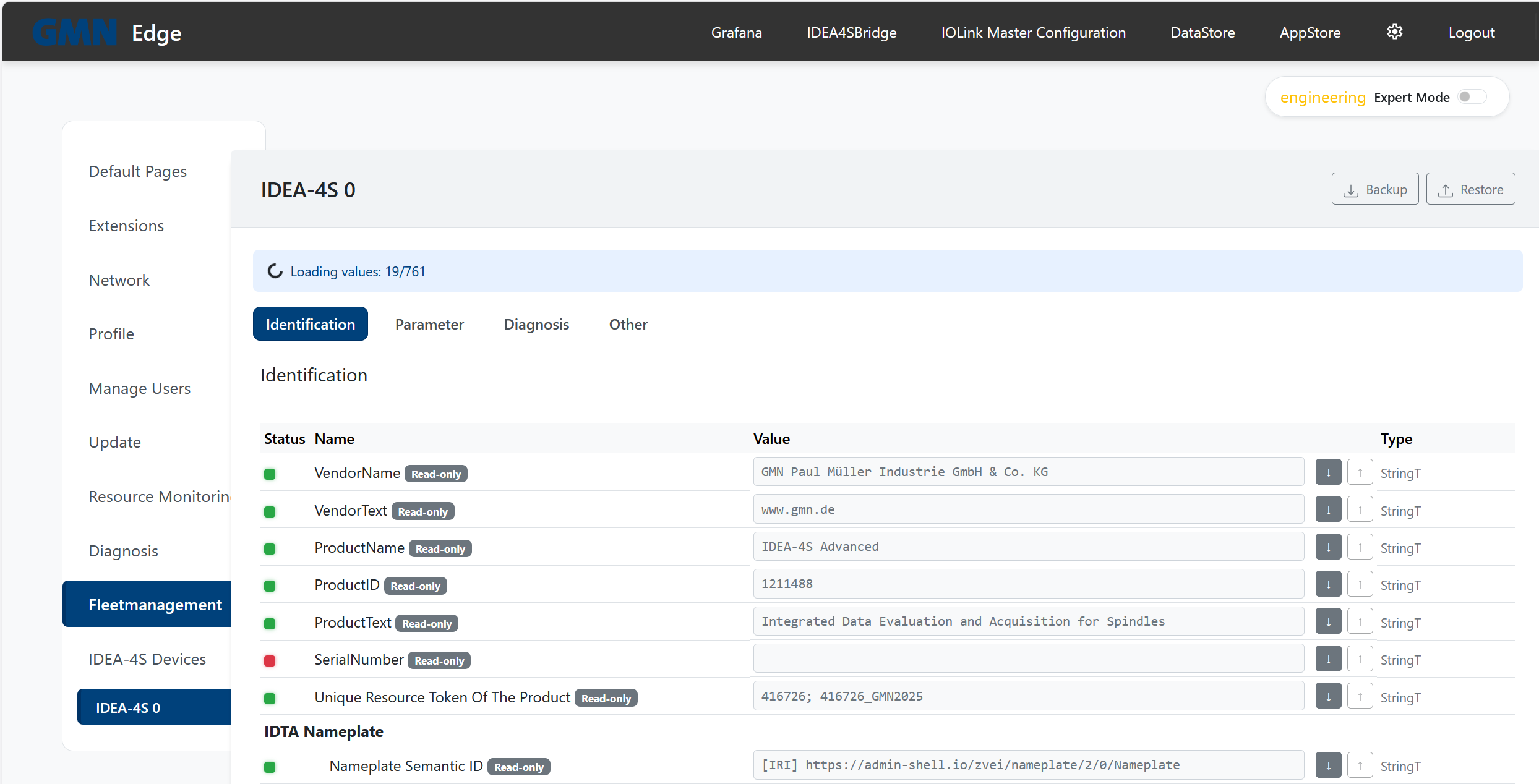
| Tab | Content | Editable? |
|---|---|---|
| Identification | Vendor, product name, serial number, IDTA Nameplate fields. | Read-only but for one field. Application Specific Tag is the freely chosen device name and is writable from gmn-2.30.0 on (32 characters, from gmn-2.33.0 as an administrator only); the remaining fields mirror the sensor’s factory data set and only the electro-mounting station can change them. |
| Parameter | Measurement, threshold and configuration values — the main area for adjustments. | Yes, per field — from gmn-2.33.0 as an administrator only. |
| Diagnosis | Lifetime, error counters, temperature windows, technical properties. | Read-only. |
| Other | Reserved for future IODD extensions. | Empty on current firmware. |
| Factory settings | The sensor’s factory data set — what it returns to when factory settings are restored. It mirrors nearly every operating parameter under the same name; up to gmn-2.27.2 these fields were scattered across the other tabs and read as duplicates there. | From gmn-2.33.0 for administrators, see below. Before that, for nobody. |
Which value sits in which tab is decided by the sensor, not by the edge: its device description declares the three areas Identification, Parameter and Diagnosis itself, and from gmn-2.32.0 on the view follows that declaration. Before then the edge inferred it from the field names — on the test device that put 347 of 920 rows in the wrong tab and scattered coherent areas such as Temperature Bearing 1 across all three. If you find values somewhere other than you are used to, this is why. The layout now follows the same source as the analysis tool ifm moneo, which GMN supplied as the reference: the device description itself.
The columns
| Column | Meaning |
|---|---|
| Status | Traffic light: read, changed (not yet written), or not read. |
| Name | Name from the device description; the indentation shows the structure. |
| Value | The value in the sensor. Editable fields are input boxes, with ↓ to re-read and ↑ to write. Commands appear here as buttons (see below). |
| Range | Permitted range in the same unit as the value, e.g. 0.00 - 19.60 mm/s. For text fields, the number of characters. From gmn-2.32.0. |
| Description | Explanation from the device description. From gmn-2.32.0. |
On narrow screens Description is hidden and then appears in the row tooltip, together with the default value from the device description, the path, the identifier and the address. Up to gmn-2.32.0 the table had two further columns, Default and Type; the default value is now only in the tooltip.
Commands are buttons
From gmn-2.33.0, visible to administrators. Some rows carry no input box but a row of buttons — Store Factory Settings, Service Reset, Reset Error Memory in the Factory settings tab, or Application Reset, Restore Factory Settings and Back-to-Box in Diagnosis. These are not values but commands: a click fires the named action in the sensor, without a confirmation. What a button does is in its tooltip. Which rows are drawn this way is decided by the device description.
:::caution Back-to-Box inhibits the sensor’s communication until the next power cycle. It is only reachable again once it has been without power — at the machine, not remotely. :::
Whether the command arrived is shown on its row (from gmn-2.34.0): the traffic light turns green when the device accepted the command and red when it refused. A few words below the buttons say which — “Refused by the device (code 531)” — and the full sentence, including what to do about it, appears when you hover that short text or the traffic light. The banner in the top right clears itself after a few seconds; what is on the row stays. The usual reason for code 531 is a factory password that is unset or wrong.
Operator role
Above the tabs you can choose the IO-Link operator role — Observer, Maintenance or Specialist, as far as the device description declares them. Each role opens a different set of fields; Observer shows the fewest. Maintenance is preselected: the set this page has always shown, so anyone who changes nothing keeps the list they know.
The selector exists from gmn-2.39.0. Before that it was never visible — the page asked for the available roles at an address that did not exist and hid the box in response. The earlier note that the selection takes effect from gmn-2.31.0 was about passing the role on to the device, not about the box.
From gmn-2.39.0 the values shown belong to the selected role as well. Each role numbers its rows for itself, and until then every value was read in the Maintenance numbering. Under Observer about half the rows would therefore have carried another parameter’s value — with no error, because such a value looks exactly like the right one.
When the load has finished
A result line closes the run, for example “All 760 values read. 13 of them are empty — the device answered and holds no value there.” or, when something really is missing, “x of y values read — z could not be read.” How large y is depends on the sensor; the test rig carries 760 rows.
Three states have to be told apart, and from gmn-2.31.0 the interface shows them apart:
| What you see | What it means |
|---|---|
| A value, green light | Read. |
| An empty field, green light | Read — the sensor holds nothing at that address. This covers fields that were never filled at commissioning: manufacturer name, country of origin, company, installation site, machine number, install and de-install date. Not a fault. |
| not read, red light | Not read. The sensor did not answer for that address. |
Up to gmn-2.30.0 the second row also read not read with a red light, and the result line counted those fields as losses — 13 of 760 on a typical device. Anyone who went looking for a fault after that was looking for something that was not there.
If fields stay red, press “Read missing values again” — only the missing ones are asked for. If the same fields stay red, this device does not deliver them.
Which fields can I change?
From gmn-2.33.0 only an administrator changes values — the whole view, not single tabs. Anyone else sees a note above the list, every field read-only and no command buttons. The commands are the reason: Back-to-Box takes the sensor out of service until the machine is next powered off, and the sensor asks nothing first.
Not every field is active for an administrator either. The badge next to the name says what the sensor states about it:
| Badge | Meaning |
|---|---|
| Read-only | The sensor does not offer this field for writing — a property of the sensor, not of the edge. |
| Write-only | The field accepts a value but never hands it back. It therefore stays empty, and its traffic light is grey. |
Editable fields show an active input and a save/write arrow on the right.
Changing the factory data set
From gmn-2.33.0, administrators only. The Factory settings tab holds what the sensor returns to when factory settings are restored. Up to gmn-2.32.0 it was locked.
Values in this tab are accepted straight away — the sensor asks for no password. Measured on the test device (ADVANCED 1.0.1.5): writing a factory value is confirmed at once.
Commands in this tab are another matter. Store Factory Settings, Service Reset and Reset Error Memory are refused while the sensor’s factory password is unset — the message then names device code 531. Enter the password in the FactoryPassword field of the same tab and write it with ↑; the sensor then carries the commands out. The Brinkhaus service supplies it; it is deliberately not printed here.
:::caution What stands here is the sensor’s fallback state. A change survives every “restore factory settings” and every restore — a backup cannot undo it, because a restore deliberately leaves this area alone. :::
💡 If you’re unsure whether a change is safe, take a Backup (see below) before changing — you can restore at any time.
Backup and restore
Top-right of the IDEA-4S page two buttons:
- Backup — reads every parameter from the sensor once more and downloads them as a JSON file. Filename e.g.
idea4s_device_0_backup.json. This takes about a minute; you may start it while the value list above is still loading — both talk to the same device and then take longer. - Restore (administrators only) — writes a previously-downloaded JSON file back to the device. It writes the operating settings; the factory data set is left alone. The values survive a power cycle of the sensor: it stores what is written to it by itself, so no extra saving step is needed. The sensor’s factory data set is left alone — a later “restore factory settings” still returns it to its delivery state (up to gmn-2.27.1 that was not the case, see the release notes for 2.27.2).
The factory data set stays out of backup and restore, and gmn-2.33.0 does not change that. It can only be changed field by field (see above), and so it can only be put back field by field.
A backup is either complete or there is no file. If a parameter could not be read even after a retry, the interface says so with numbers and downloads nothing — try again in that case. The success message names what is in the file, e.g. “700 values read, 62 not delivered by the device”: the second number are parameters this device never delivers. They are listed by name in the file, so two backups of the same sensor can be compared.
⚠ Restore overwrites every field in the backup with the value it carried at the time. Always reuse a backup taken from the same sensor type and firmware.
⚠ Backup files from firmware older than gmn-2.26.0 may contain gaps that were not visible at the time. Restore refuses them and names how many parameters are missing. You can still write the rest — the prompt says exactly how many parameters would keep their current value. A fresh backup is the better answer.
Loading a new IODD
The whole parameter list — which fields exist, what they are called, their unit and their limits — comes from the IODD, the sensor’s device description file. The edge ships with the IODDs that were known when it was built. A sensor on a newer firmware level is not described there: it does not appear in the device list at all, and its measurements are missing from the DataStore.
From gmn-2.31.0 you load the matching IODD yourself, without a firmware update:
- Gear icon → Settings → IDEA-4S Devices → the device in question.
- Top right, Upload IODD.
- Pick the file. Either works: the single
…-IODD1.1.xml, or GMN’s complete ZIP package — only the device descriptions are taken from it, not the images or firmware files. - Confirm. The file goes to the IDEA-4S bridge and to the DataStore; the bridge then restarts and the parameter list reloads.
Uploaded IODDs shows what is loaded and lets you remove it again — the built-in description then applies once more.
⚠ Do not start an upload while a backup is running: the bridge restart cuts it off.
An uploaded IODD displaces the built-in one for the same device and firmware level. A wrong file therefore makes the parameter list unusable — but Remove undoes it at any time.
If everything ends up in the Parameter tab after an upload and Identification and Diagnosis are empty, the uploaded file does not declare the three areas (RoleMenuSet). Every description GMN ships does; a file from elsewhere need not. The values are all there and in the right order, just not spread across the tabs.
Administrators only.
The start page: which sensors are shown
Under IDEA4SBridge the edge shows one card per sensor with the current value, the observed range, the alarm and fault thresholds and the exceedance counters. Which cards exist is decided by the sensor’s device description (IODD): every channel it gives statistics or thresholds for gets one. On the IDEA-4S ADVANCED that adds displacement and displacement temperature, on the ADVANCED ENC the encoder channels (air gap, vRMS, aPeak, encoder temperature, vibration and speed).
The Sensors button in the bar at the top picks which cards appear; Save stores the choice. It applies to this edge: the kiosk screen and every office browser show the same cards. Until something is chosen, every card is shown except channels switched off in the sensor. How many cards are hidden is shown below the cards and on the button.
If a field is missing
The split into Identification / Parameter / Diagnosis is derived automatically from the sensor’s IODD. If a field is missing or in the “wrong” tab, the built-in IODD does not match the sensor’s firmware level — load the IODD that belongs to the device (see above). If that does not help, contact Brinkhaus support with the device type and FW level (visible on the Identification tab).