
What it is
Every openXEdge is preconfigured to phone home to the FleetManager as soon as it can reach the internet. That is the foundation for everything you might want to be remotely supported on — remote diagnosis, update recommendations, emergency repair.
Prerequisites
Three conditions need to hold at the same time:
- 24 V power at the edge.
- Eth2 (middle port) is connected to a DHCP server that hands out an office IP and allows internet access — typically an office switch behind your company router.
- The edge has its identifier: devices with a serial number bring it from the factory; older devices get their machine ID at activation.
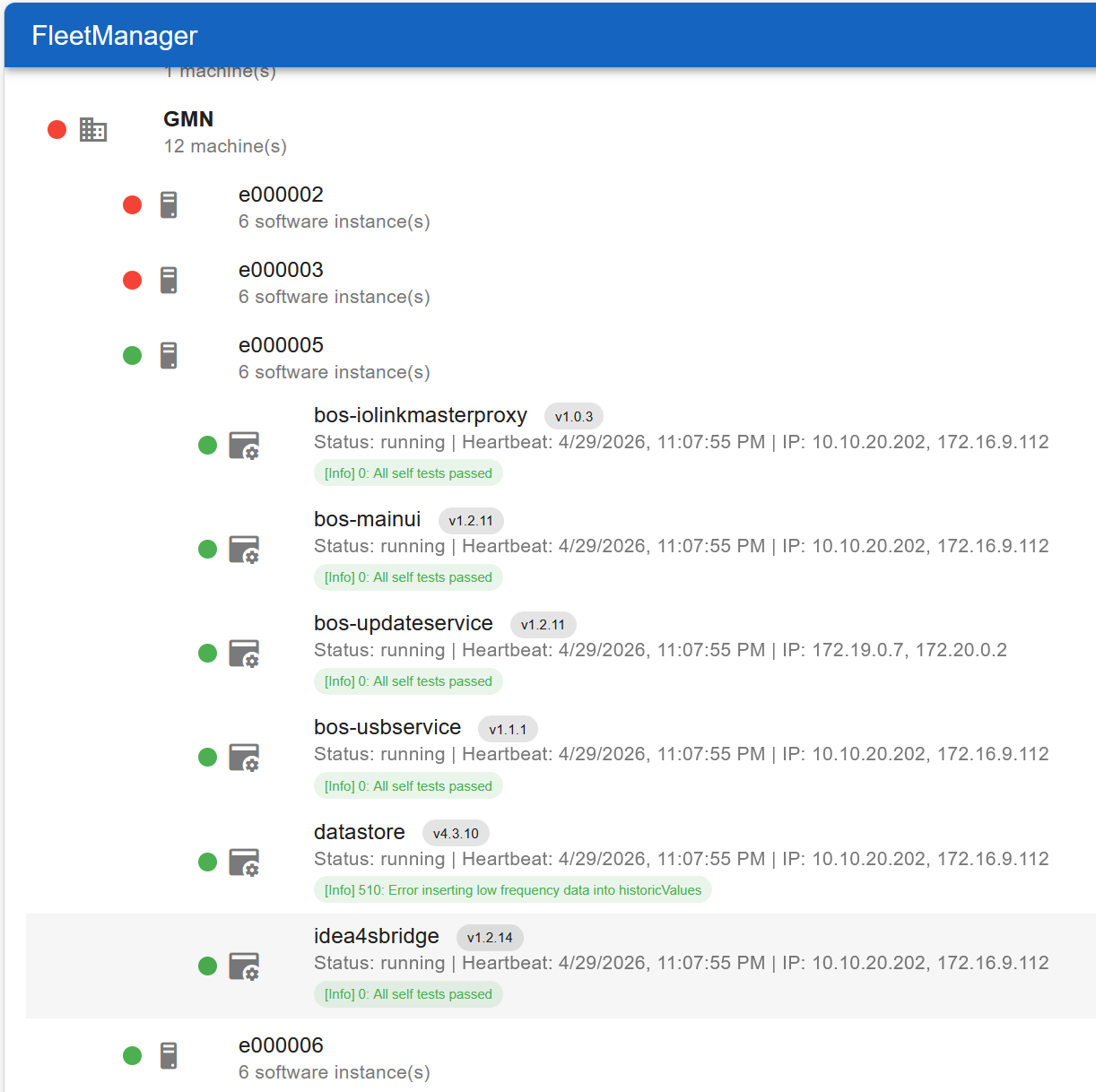
When all conditions hold, the edge sends a heartbeat to the FleetManager every few minutes with versions, IPs, and self-diagnosis. Brinkhaus personnel then see your edge in the central overview:
Serial number, device name and inventory number
Every newly shipped edge carries a serial number (e.g. SN00100), printed on
the label and the delivery note. Fleet management keys the device by this
number. It is assigned at first provisioning and cannot be changed on the edge —
so a device stays the same device in the fleet, even when you rename it or move
it elsewhere.
What you call the device is up to you, with two free fields (the settings page labels them in German):
- Gerätename (device name) — the name fleet management shows for the device (e.g. “Lathe 1”). Renaming only changes the label; no second device appears.
- Inventarnummer (inventory number) — your own inventory or machine number, so you can find the device in your records.
Both fields are optional.
Older devices without a serial number stay keyed by the machine ID from their activation and keep it. As long as they are connected to fleet management, support can assign them a serial number there later. The machine ID, the password and the history are kept; on the edge the serial number then appears in place of the Machine field.
What Brinkhaus personnel can see
Per edge in the central view:
- Status dot (green/yellow/red) — at a glance, is the edge still online and does it report problems.
- Version levels of every running container (
bos-mainui,bos-updateservice,datastore,idea4sbridge, …). - Last heartbeat time — anything older than a few minutes means the edge is offline or has lost internet.
- All current IPs — useful when the office DHCP rotates the lease.
- Self-diagnosis messages — the same codes you see under Read diagnosis.
What the edge actually transmits
Deliberately minimal:
- Version levels, IPs, heartbeat time, self-diagnosis codes.
- Serial number, device name and inventory number.
- Whether the initial password has been changed — never the password itself (see Change password).
- No sensor measurements, no process data, no personal data.
That is: the FleetManager is a maintenance plane for the edge itself, not an archive of your production data. Your measurements stay on the edge (and wherever you actively export them).
Edge-side control
On the edge you see your part under Settings → Fleetmanagement:
- Customer Name — read-only, the customer this edge belongs to in the fleet.
- Seriennummer (serial number) — read-only, only on devices with a serial number. It identifies this edge in the fleet.
- Machine — only on devices without a serial number: the machine ID from activation that identifies this edge in the fleet.
- Gerätename (device name), Inventarnummer (inventory number) and Aufstellungsort (location) — free to choose.
Apply changes with Save Fleetmanagement Settings. Device name, inventory number and location appear in fleet management only after the next restart of the device.
When an edge goes offline
In the central view (image above) edges whose last heartbeat is too old appear with a red status dot (in the example e000002 and e000003). Brinkhaus personnel see this immediately and reach out proactively — provided the edge is connected to fleet management. Typical causes are failed switches, forgotten power, or an office DHCP that rotated its pool.
Asking for help
Send the hotline:
- the serial number (on the label and the delivery note, on the edge under Settings → Fleetmanagement) or, on older devices without a serial number, the machine ID (same place),
- a brief symptom (“Grafana empty”, “update keeps failing”),
- the last action you tried.
If the edge is connected to fleet management, the hotline reads the diagnosis in the FleetManager in parallel — usually that’s enough to locate the problem without anyone going on-site.